How it works
A walkthrough using a real example — a first-year sociology essay marked against a four-criterion rubric. The screenshots below are the actual product, not mock-ups.
1. Mark as you always have
Set up your assignment or quiz essay with a rubric (your existing Moodle rubric, or one from Grade Confidence's small built-in library). Then grade normally. If you've been consistent, Grade Confidence stays silent — it only speaks up when something looks materially off. There's nothing new for students to learn, and nothing changes about who decides the grade: you do.
2. See the whole class at a glance
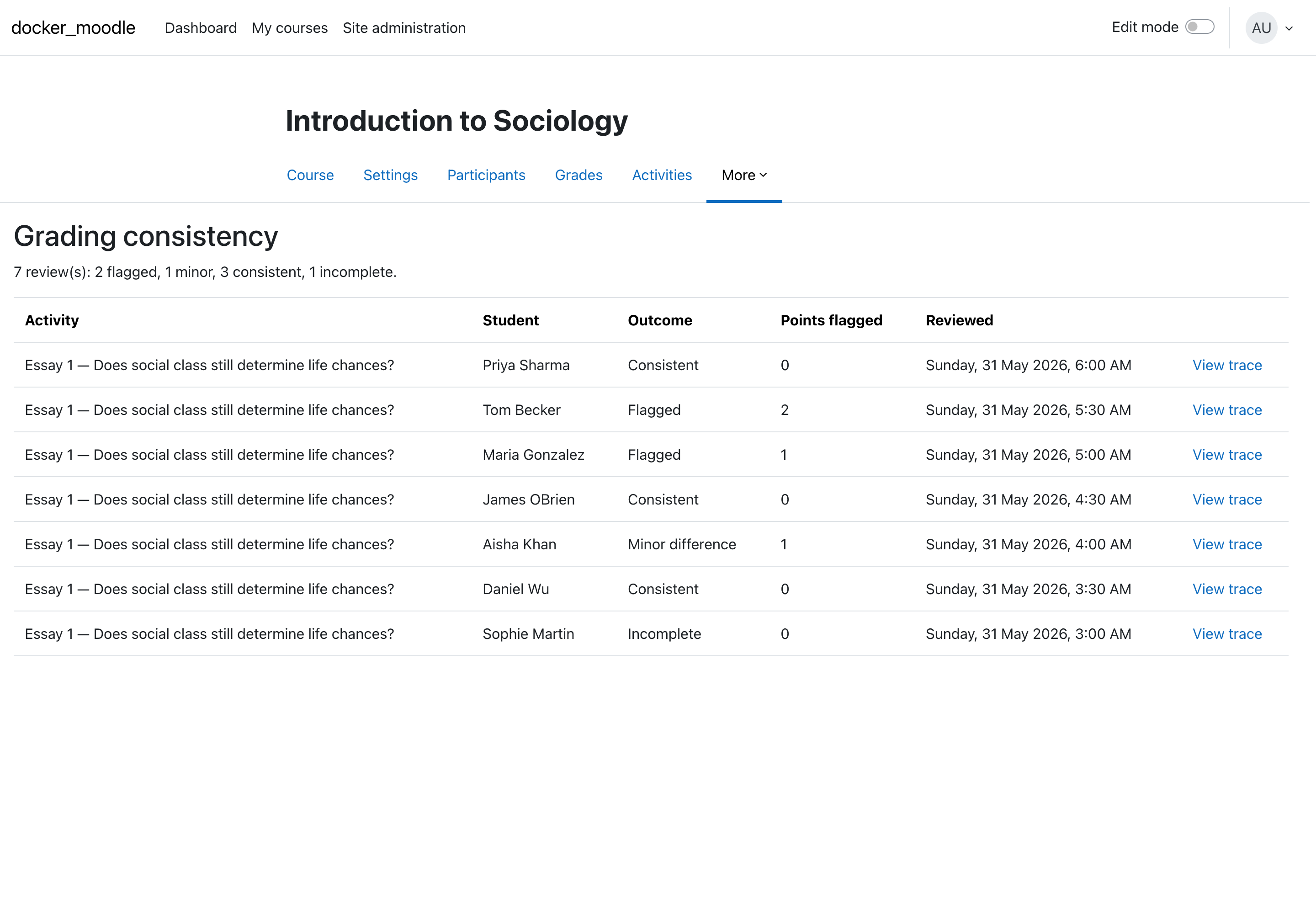
The Grading consistency dashboard summarises every review in the course: which grades look consistent, which are flagged, and which couldn't be fully reviewed. Here, seven essays produced two flags, one minor difference, three consistent, and one incomplete.
3. Understand exactly why something was flagged
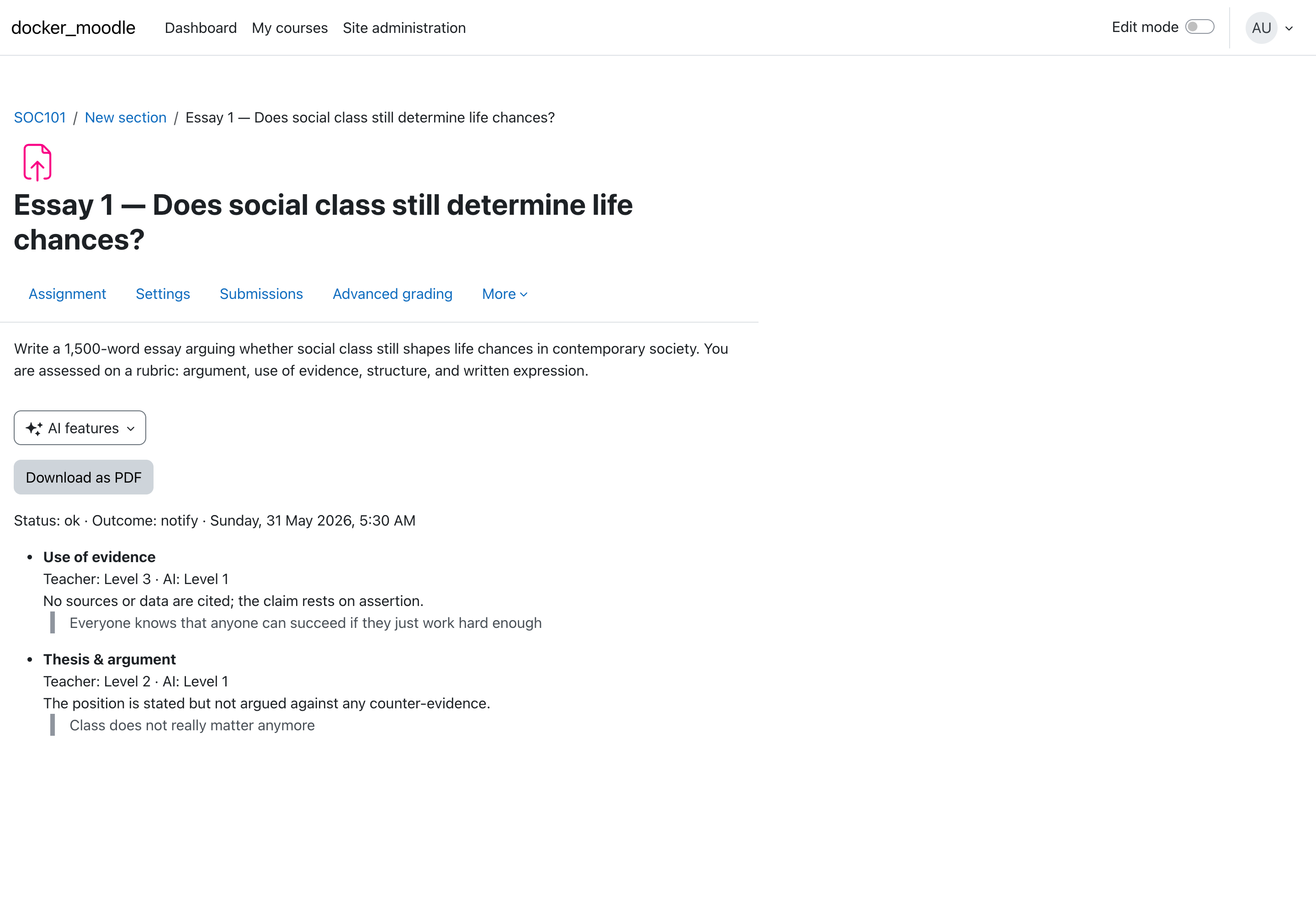
Open View trace on any review to see the reasoning, criterion by criterion. In this example a grade was flagged on Use of evidence: the teacher selected level 3 ("Some support"), but the AI read it as level 1 — and shows the verbatim quote from the student's own work as the reason. Every quote is verified to be a real substring before it is ever shown, so the evidence can't be invented. A one-click Download as PDF gives you the record for an appeal.
4. Tune it to your context
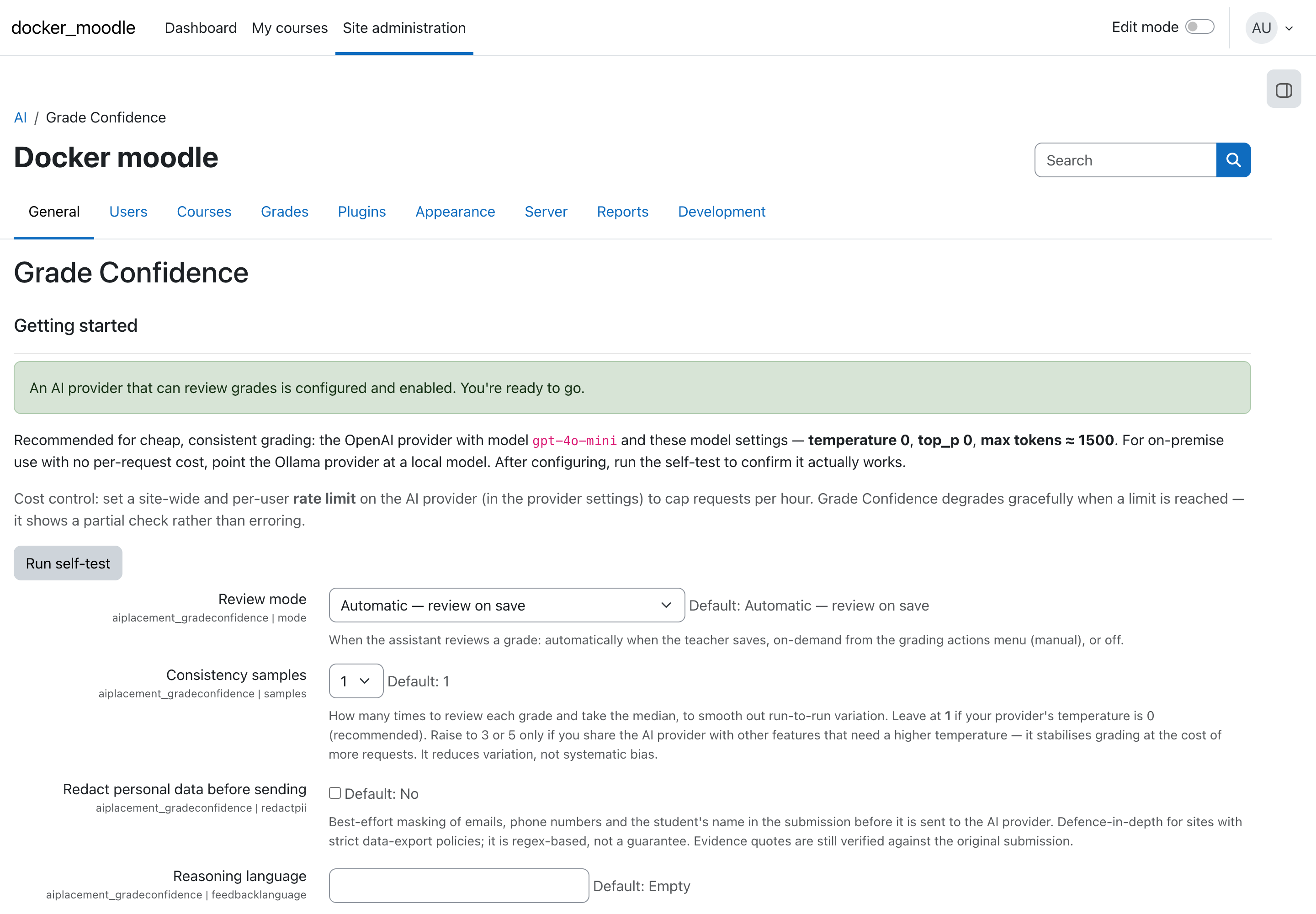
By default it runs on demand — the marker clicks "Ask Grade Confidence to check this grade" when they want a second opinion (it can also run automatically on every save). Because that keeps volume low, you can afford the best model — and a built-in self-test tells you whether the model you've configured is actually fit for grading this kind of work. An administrator can give each teacher a check allowance ("40 a term"), cap spend per course, set the sample count, enable the ESL-fair mode and a feedback language, and a confidence threshold below which a review is withheld — because we would rather show nothing than a result the AI was unsure about.
What stays true throughout
- You decide what's valid. It flags; it never sets or changes a grade — so every grade keeps full teacher agreement, and you can still review or audit it if a student or parent contests.
- Students never see the internal flags or quotes — they're for the marker.
- It doesn't track teachers. Reviews are stored against the student's work, with no record of who graded — no scoreboard, no league table.
- Evidence is real. Quotes are verified against the submission before display.